



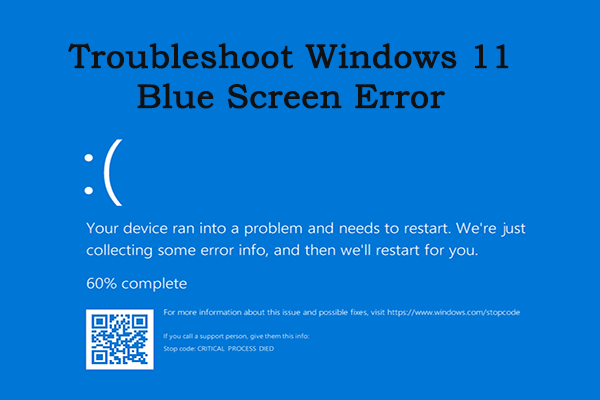
Encountering a blue screen error in Windows 11, commonly known as the Blue Screen of Death (BSOD), can be frustrating. It usually signals a serious system issue such as driver conflicts, hardware failures, or corrupted system files. Understanding the causes and solutions helps you quickly resolve the problem and prevent future occurrences.
This guide will walk you through step-by-step methods to fix blue screen errors in Windows 11 and keep your system stable.
Common Causes of Blue Screen Errors
Blue screen errors can occur due to various reasons, including:
-
Driver Conflicts or Outdated Drivers – Faulty or outdated device drivers are a major cause.
-
Hardware Issues – Faulty RAM, hard drives, or overheating components.
-
Corrupted System Files – Essential Windows files may become corrupted over time.
-
Software Conflicts – Incompatible applications or antivirus programs.
-
External Devices – USB drives, external SSDs, or peripherals may cause crashes if incompatible.
For instance, using high-speed storage like a Best External SSD for Gaming and Storage without updated drivers may sometimes contribute to system instability if firmware or connections are faulty.
Step 1: Note the Error Code
When a blue screen appears, take note of the error code (e.g., CRITICAL_PROCESS_DIED or MEMORY_MANAGEMENT). This helps identify the specific issue and guides troubleshooting.
Step 2: Restart Windows in Safe Mode
-
Press Shift + Restart from the Start menu.
-
Navigate to Troubleshoot → Advanced Options → Startup Settings → Restart.
-
Select Safe Mode from the options.
Safe Mode loads Windows with minimal drivers, allowing you to troubleshoot without interference from problematic software or drivers.
Step 3: Update Device Drivers
Outdated or incompatible drivers often trigger BSODs:
-
Press Windows + X → Device Manager.
-
Expand categories and right-click on devices (like display adapters, network adapters).
-
Select Update driver → Search automatically for drivers.
-
Restart your computer.
Consider visiting the manufacturer’s website for your GPU, motherboard, or storage device to download the latest drivers.
Step 4: Run System File Checker (SFC) and DISM
Corrupted system files can lead to blue screens:
-
Open Command Prompt as Administrator.
-
Run the following commands one by one:
sfc /scannow

DISM /Online /Cleanup-Image /RestoreHealth
-
Wait for the process to complete and restart your PC.
These tools scan and repair corrupted Windows files, restoring stability.
Step 5: Check for Hardware Issues
-
Memory Test: Press Windows + R → mdsched.exe and restart to check for RAM issues.
-
Disk Check: Run
chkdsk /f /rin Command Prompt to scan for hard drive errors. -
Overheating: Ensure fans are clean and functioning properly.
Faulty hardware should be replaced promptly to prevent recurring BSODs.
Step 6: Uninstall Problematic Software
-
Remove recently installed applications that may conflict with system processes.
-
Check antivirus or security software for known compatibility issues.
-
Use Settings → Apps → Apps & Features to uninstall suspicious programs.
Step 7: Use System Restore or Reset
If issues persist:
-
System Restore: Revert Windows to a previous working state.
-
Settings → System → Recovery → Open System Restore
-
-
Reset this PC: Reinstall Windows without affecting personal files.
-
Settings → System → Recovery → Reset this PC
-
These options can resolve deep-seated errors that manual troubleshooting cannot fix.
Blue Screen Troubleshooting Table
| Step | Action | Purpose |
|---|---|---|
| 1 | Note error code | Identify cause |
| 2 | Safe Mode | Troubleshoot without interference |
| 3 | Update drivers | Fix driver conflicts |
| 4 | SFC & DISM | Repair corrupted system files |
| 5 | Check hardware | Detect RAM, HDD/SSD issues |
| 6 | Uninstall software | Remove conflicting programs |
| 7 | System Restore / Reset | Restore stable system state |
Frequently Asked Questions (FAQs)
Q: Will reinstalling Windows fix blue screen errors?
Yes, a clean install can resolve persistent errors, but try other troubleshooting steps first to preserve files.
Q: Can an external SSD cause blue screen errors?
Yes, if drivers are outdated or the SSD is faulty. Always use the latest firmware and reliable connections for devices like Best External SSD for Gaming and Storage.
Q: How can I prevent future BSODs?
Keep Windows updated, maintain drivers, regularly check hardware, and avoid incompatible software.
Q: Are blue screen errors always hardware-related?
No, they can be caused by software, drivers, or system file corruption as well.
Q: How do I know if my RAM is causing BSODs?
Run Windows Memory Diagnostic or MemTest86 to detect memory issues.
Final Thoughts
Blue screen errors in Windows 11 can be alarming but are usually fixable with systematic troubleshooting. By updating drivers, repairing system files, checking hardware, and managing software conflicts, you can restore system stability.
Pay special attention to connected devices, like high-speed external storage, because misconfigured or faulty peripherals—including a Best External SSD for Gaming and Storage—can sometimes trigger crashes. Following these steps ensures a smoother, more reliable Windows 11 experience.