


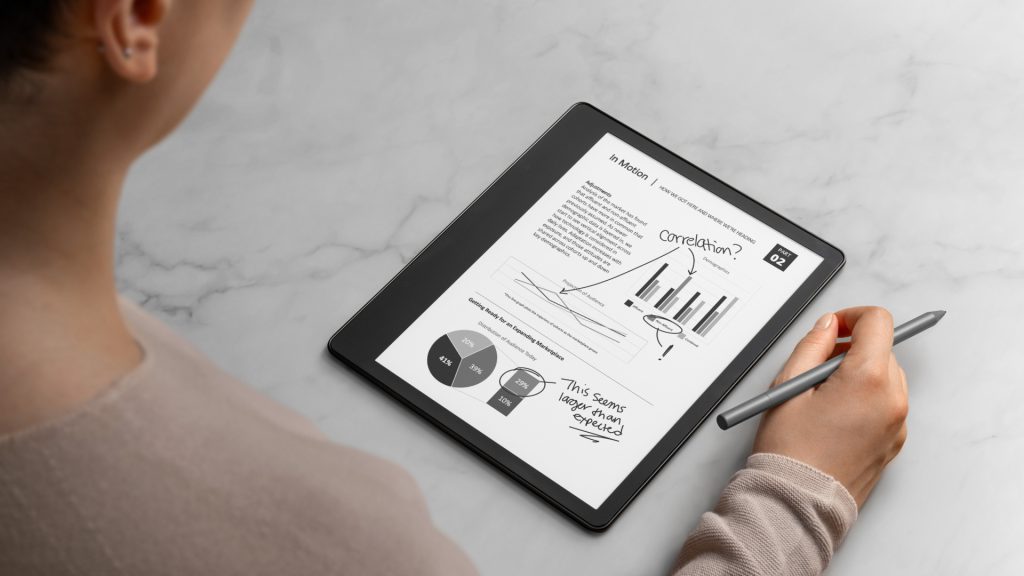
For students, artists, and professionals, a versatile tablet can transform note taking and digital drawing. The right tablet combines precision, portability, and performance to enhance productivity and creativity. Whether you’re sketching, annotating documents, or organizing your thoughts, choosing the right device is essential.
This guide explores the best tablets for note taking and drawing, key features to look for, and tips to get the most out of your device.
Why a Good Tablet Matters
Tablets designed for creativity and productivity offer several benefits:
-
Precision: Stylus support allows for accurate sketches, handwriting, and annotations.
-
Portability: Lightweight design enables work on the go.
-
Versatility: Combines digital note taking, drawing, and multimedia functions.
-
Organization: Digital notes are searchable, shareable, and easy to store.
-
Creative Tools: Access to apps for drawing, painting, and professional design work.
A high-quality tablet ensures smooth workflow and professional-level output.
Key Features to Look for
-
Stylus Compatibility: Pressure sensitivity, palm rejection, and tilt support are essential.
-
Display Quality: High-resolution, bright displays improve accuracy for drawing and writing.
-
Performance: Fast processors and ample RAM ensure smooth multitasking and app performance.
-
Battery Life: Long-lasting battery for uninterrupted work.
-
Operating System: iPadOS, Android, or Windows—choose based on preferred apps and ecosystem.
-
Portability: Lightweight and durable design for carrying to school, work, or studios.
-
App Support: Access to note taking and creative apps like Notability, Procreate, or Adobe Fresco.
Top Tablets for Note Taking and Drawing
1. Apple iPad Pro 12.9
Highlights:
-
Works with Apple Pencil (2nd generation) for precise drawing and note taking.
-
High-resolution Liquid Retina XDR display.
-
Fast M2 chip for smooth multitasking.
Why it works:
Ideal for professionals and creatives seeking high-end performance and a wide app ecosystem.
2. Samsung Galaxy Tab S9 Ultra
Highlights:
-
Comes with S Pen for responsive writing and sketching.
-
AMOLED display with vibrant colors.
-
Long battery life and multi-window support.
Why it stands out:
Perfect for Android users looking for a large display and productivity-focused features.
3. Microsoft Surface Pro 9
Highlights:
-
Compatible with Surface Pen for drawing and note taking.
-
Runs full Windows apps like OneNote and Adobe Photoshop.
-
Versatile 2-in-1 design allows laptop functionality.
Why it works:
Best for users who need Windows software with tablet portability.
4. Wacom Cintiq 16
Highlights:
-
Professional drawing tablet with pressure-sensitive pen.
-
16-inch Full HD display with accurate colors.
-
Ideal for digital artists who connect to a computer.
Why it stands out:
A dedicated tool for artists seeking precise, professional drawing capabilities.
5. Apple iPad Air 5
Highlights:
-
Supports Apple Pencil (2nd generation).
-
Lightweight, portable, and powerful enough for creative apps.
-
Excellent display quality for drawing and writing.
Why it works:
Offers a balance of performance and affordability for students and casual artists.
Comparison Table
| Tablet | Stylus Support | Display | Best For | Price Range |
|---|---|---|---|---|
| Apple iPad Pro 12.9 | Apple Pencil 2 | 12.9″ Liquid Retina XDR | Professional creatives | $$$$ |
| Samsung Galaxy Tab S9 Ultra | S Pen | 14.6″ AMOLED | Android users, productivity | $$$ |
| Microsoft Surface Pro 9 | Surface Pen | 13″ PixelSense | Windows apps and multitasking | $$$$ |
| Wacom Cintiq 16 | Wacom Pen | 16″ Full HD | Professional digital artists | $$$$ |
| Apple iPad Air 5 | Apple Pencil 2 | 10.9″ Retina | Students and casual artists | $$ |
Tips for Getting the Most Out of Your Tablet
-
Use a Screen Protector: Reduces glare and protects the display from scratches.
-
Customize Pen Settings: Adjust pressure sensitivity and shortcuts for efficiency.
-
Organize Notes Digitally: Use folders, tags, and notebooks for easy access.
-
Regular Backups: Sync your notes and drawings to cloud storage to avoid data loss.
-
Optimize App Workflow: Familiarize yourself with shortcuts and app features for smoother productivity.
A tablet’s utility is maximized when combined with a thoughtful workflow and proper maintenance, similar to how professionals enhance their work using Best 4K Monitors for Video Editing—choosing the right device improves precision, efficiency, and output quality.
Frequently Asked Questions (FAQs)
Q: Do I need a high-end tablet for casual note taking?
Not necessarily. Mid-range tablets like iPad Air or Galaxy Tab S series are sufficient for most students.
Q: Is an Android tablet good for drawing compared to an iPad?
Yes, Android tablets like the Galaxy Tab S series offer excellent stylus support and large displays, though app selection may be more limited than iPadOS.
Q: Can I use these tablets for professional graphic design?
High-end models like iPad Pro, Wacom Cintiq, and Surface Pro 9 are suitable for professional work.
Q: Are stylus pens included?
Some tablets include a stylus, while others, like Wacom or Apple iPad Air, require separate purchase.
Q: Can I take notes and draw offline?
Yes, most apps work offline, with syncing to the cloud available when connected to the internet.
Final Thoughts
Choosing the best tablet for note taking and drawing depends on your needs, preferred operating system, and budget. Whether it’s the high-performance iPad Pro for professionals, the versatile Surface Pro 9 for Windows users, or the portable iPad Air for students, there’s a tablet suited for every workflow.
By combining a capable device with the right apps and accessories, you can enhance productivity, creativity, and organization, just like using specialized tools such as Best 4K Monitors for Video Editing elevates professional workflows.