

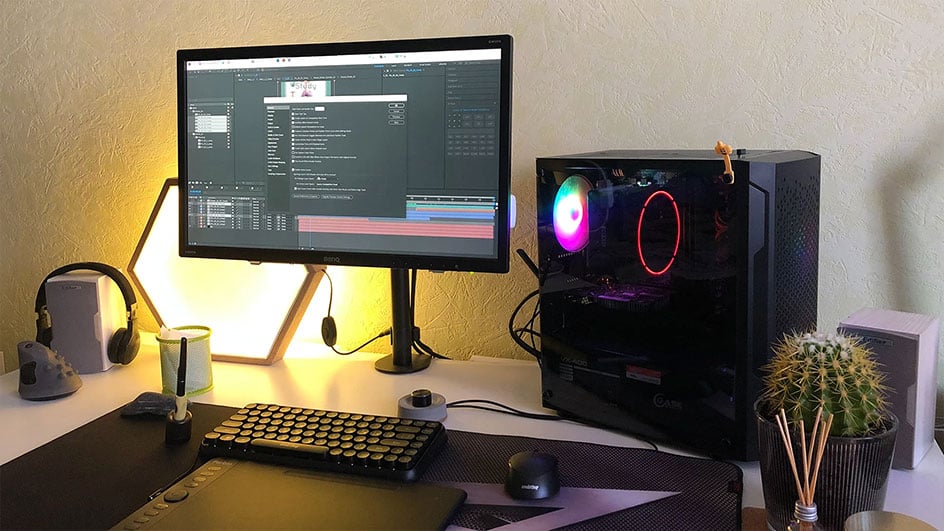
For professional and aspiring video editors, having the right monitor is essential. A 4K monitor for video editing delivers crisp visuals, accurate colors, and a large workspace to make precise edits. Choosing the right monitor can improve workflow efficiency, color grading accuracy, and overall project quality.
This guide explores top 4K monitors for video editing, key features to consider, and tips to optimize your setup.
Why a 4K Monitor Matters for Video Editing
Video editors require precise detail and accurate color representation. A 4K monitor offers:
-
High Resolution: 3840 x 2160 pixels provide exceptional clarity for editing 4K footage.
-
Color Accuracy: Essential for color grading and post-production work.
-
Large Workspace: More room for timelines, layers, and multiple editing tools.
-
Future-Proofing: 4K is increasingly standard for professional projects.
-
Improved Workflow: Larger, sharper displays reduce eye strain and increase precision.
Investing in a high-quality 4K monitor ensures your edits look professional and consistent across different devices.
Key Features to Look for in a 4K Video Editing Monitor
-
Color Accuracy: Look for monitors with at least 99% sRGB, AdobeRGB, or DCI-P3 coverage.
-
Panel Type: IPS panels provide better viewing angles and color consistency than TN panels.
-
Refresh Rate: 60Hz is sufficient for editing; higher refresh rates are optional for gaming or motion work.
-
Connectivity: Multiple ports like HDMI, DisplayPort, and USB-C support various devices.
-
Ergonomics: Adjustable height, tilt, and swivel improve comfort during long editing sessions.
-
HDR Support: High Dynamic Range enhances color depth and contrast for accurate previews.
Top 4K Monitors for Video Editing
1. LG UltraFine 27MD5KL-B
Highlights:
-
27-inch 5K monitor with near-perfect color accuracy.
-
IPS panel with wide color gamut.
-
USB-C connectivity for Mac and PC.
Why it works:
Ideal for editors seeking precision and seamless integration with Apple devices.
2. Dell UltraSharp U2723QE
Highlights:
-
27-inch 4K IPS display with factory-calibrated colors.
-
Adjustable stand and multiple connectivity options.
-
Excellent for long editing sessions with minimal eye strain.
Why it stands out:
A reliable choice for Windows users requiring color-accurate workflows.
3. BenQ PD3220U
Highlights:
-
32-inch display with 95% DCI-P3 and HDR10 support.
-
KVM switch allows multiple device connections.
-
Great for both video editing and graphic design.
Why it works:
Large screen size and color accuracy make it ideal for multitasking and detailed editing.
4. ASUS ProArt PA32UCX
Highlights:
-
32-inch 4K monitor with mini-LED backlighting and HDR support.
-
Factory-calibrated for professional color grading.
-
Excellent contrast and brightness for cinematic editing.
Why it stands out:
Perfect for high-end editing where color grading precision is critical.
5. Eizo ColorEdge CG319X
Highlights:
-
31-inch 4K+ monitor with 99% AdobeRGB coverage.
-
Built-in calibration sensor for accurate color maintenance.
-
Wide gamut and HDR support for professional workflows.
Why it works:
Top choice for studios and professionals who need industry-standard color accuracy.
Comparison Table
| Monitor | Size | Color Coverage | HDR Support | Price Range |
|---|---|---|---|---|
| LG UltraFine 27MD5KL-B | 27″ | DCI-P3 99% | No | $$$ |
| Dell UltraSharp U2723QE | 27″ | sRGB 99% | No | $$ |
| BenQ PD3220U | 32″ | DCI-P3 95% | Yes | $$ |
| ASUS ProArt PA32UCX | 32″ | DCI-P3 99% | Yes | $$$$ |
| Eizo ColorEdge CG319X | 31″ | AdobeRGB 99% | Yes | $$$$$ |
Tips for Optimizing Your Video Editing Monitor
-
Calibrate Regularly: Use built-in calibration tools or third-party devices for accurate colors.
-
Adjust Brightness and Contrast: Avoid eye strain and maintain color fidelity.
-
Position Properly: Keep the monitor at eye level and at an appropriate distance to reduce fatigue.
-
Use a Monitor Hood: Minimizes glare for consistent color perception.
-
Organize Your Workspace: Keep timelines and toolbars optimized for your screen size.
Proactive maintenance and proper use of your monitor are crucial for preserving color accuracy, much like how following step-by-step methods improves outcomes in How to Recover Deleted Files from External Hard Drive—attention to detail matters.
Frequently Asked Questions (FAQs)
Q: Is a 32-inch monitor better than 27-inch for editing?
Depends on your workspace. Larger screens allow more room for timelines and multiple windows, but 27-inch monitors are more compact.
Q: Do I need HDR for video editing?
HDR is beneficial for projects with high dynamic range content, but 4K resolution and color accuracy are more critical for general editing.
Q: Can I use a 4K monitor for both Mac and Windows?
Yes, most monitors support both platforms, though check connectivity options like USB-C, DisplayPort, or HDMI.
Q: Are expensive monitors worth it for beginners?
Entry-level 4K monitors are sufficient to start, but professionals benefit from high-end models with advanced color accuracy.
Q: How often should I calibrate my monitor?
Monthly calibration is recommended for consistent color accuracy, especially for professional projects.
Final Thoughts
A 4K monitor for video editing is an essential investment for professionals and enthusiasts alike. From compact 27-inch options to large, HDR-enabled displays, the right monitor enhances color accuracy, workflow efficiency, and visual clarity.