


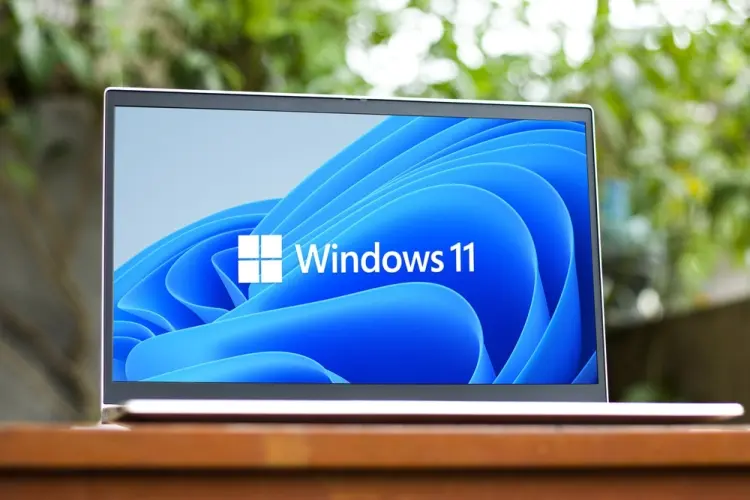
If your computer takes forever to boot, lags while opening programs, or freezes during basic tasks, you’re not alone. Many users experience performance issues over time. The good news is that you can significantly improve performance without buying a new device.
This complete guide explains how to speed up a slow Windows 11 laptop using practical, beginner-friendly steps.
Why Is Your Windows 11 Laptop Slow?
Before fixing the issue, it helps to understand common causes:
-
Too many startup programs
-
Low storage space
-
Outdated drivers
-
Background apps consuming RAM
-
Malware or unwanted software
-
Fragmented or aging hard drive (especially HDDs)
Now let’s fix it step by step.
1. Disable Startup Programs
Many apps launch automatically when your computer boots, slowing down startup time.
How to Disable Startup Apps:
-
Press Ctrl + Shift + Esc to open Task Manager.
-
Click the Startup tab.
-
Right-click unnecessary programs.
-
Select Disable.
Disabling non-essential apps can drastically reduce boot time.
2. Uninstall Unnecessary Programs
Unused applications take up storage and may run background processes.
Steps:
-
Open Settings.
-
Go to Apps > Installed Apps.
-
Remove programs you no longer use.
Be cautious not to uninstall important system programs.
3. Free Up Disk Space
Low storage significantly impacts performance.
Clean Up Storage:
-
Delete temporary files
-
Empty Recycle Bin
-
Use Disk Cleanup
-
Remove duplicate files
-
Move large files to external storage
Aim to keep at least 20% of your drive free for optimal performance.
4. Upgrade from HDD to SSD
If your laptop uses a traditional hard disk drive (HDD), upgrading to a solid-state drive (SSD) is the single most effective performance boost.
Benefits of SSD:
-
Faster boot times
-
Faster file transfers
-
Improved system responsiveness
An SSD can make an older laptop feel brand new.
5. Add More RAM
If your laptop slows down when multitasking, you may need more memory.
Signs you need more RAM:
-
Frequent freezing
-
High memory usage in Task Manager
-
Slow performance with multiple browser tabs open
Upgrading from 4GB to 8GB or 16GB can dramatically improve performance.
6. Turn Off Visual Effects
Windows 11 includes visual animations that may consume system resources.
Disable Visual Effects:
-
Search for Performance in the Start menu.
-
Select Adjust the appearance and performance of Windows.
-
Choose Adjust for best performance.
This reduces animation effects and improves speed.
7. Update Windows and Drivers
Outdated system files can cause performance problems.
Steps:
-
Go to Settings > Windows Update
-
Check for updates
-
Install the latest drivers
Updates often include bug fixes and performance improvements.
8. Scan for Malware
Viruses and unwanted software can consume CPU and memory.
Use:
-
Built-in Windows Security
-
A trusted antivirus program
Run a full system scan and remove any threats found.
9. Disable Background Apps
Background apps quietly use system resources.
Turn Off Background Apps:
-
Open Settings.
-
Go to Apps > Advanced App Settings.
-
Disable background permissions for unnecessary apps.
This reduces RAM and CPU usage.
10. Adjust Power Settings
Your laptop may be set to power-saving mode.
Switch to Performance Mode:
-
Open Settings.
-
Go to System > Power & Battery.
-
Select Best Performance under Power Mode.
This prioritizes speed over battery life.
11. Reset Windows 11 (Last Resort)
If nothing works, resetting Windows can restore performance.
Reset Option:
-
Go to Settings > System > Recovery
-
Choose Reset this PC
-
Keep your files or remove everything
Back up your data before resetting.
Quick Performance Improvement Checklist
| Fix | Difficulty | Impact Level |
|---|---|---|
| Disable Startup Apps | Easy | High |
| Free Disk Space | Easy | Medium |
| Upgrade to SSD | Moderate | Very High |
| Add RAM | Moderate | Very High |
| Disable Visual Effects | Easy | Medium |
| Malware Scan | Easy | High |
When Should You Consider Replacing Your Laptop?
Sometimes, hardware limitations make upgrades impractical. If your laptop:
-
Is more than 7–8 years old
-
Cannot upgrade RAM
-
Uses outdated processors
-
Lacks SSD support
It may be time to upgrade.
If you’re thinking about buying a new device, reviewing a comprehensive Laptop Buying Guide for College Students can help you choose a model with strong performance, sufficient RAM, and long-term reliability.
Frequently Asked Questions (FAQs)
Why is my Windows 11 laptop slow even with few programs installed?
Hidden background processes, outdated drivers, or low storage space may still affect performance.
Will upgrading to SSD really make a difference?
Yes. Switching from HDD to SSD can reduce boot times from minutes to seconds and significantly improve responsiveness.
How much RAM do I need for Windows 11?
At least 8GB is recommended for smooth everyday performance. For multitasking or heavier applications, 16GB is ideal.
Does resetting Windows 11 improve speed?
Yes, resetting removes bloatware and corrupted files, often restoring original performance.
How often should I clean up my laptop?
Perform basic maintenance every 2–3 months to keep your system running smoothly.
Final Thoughts
Knowing how to speed up a slow Windows 11 laptop can save you money and extend your device’s lifespan. Simple actions like disabling startup apps, freeing disk space, and upgrading to an SSD can dramatically improve performance.