



A stable internet connection is essential for work, entertainment, and communication. However, slow speeds, frequent disconnections, or no connectivity at all can be frustrating. The good news is that many common internet issues can be fixed at home without technical expertise.
This guide will help you identify and troubleshoot the most common internet problems step by step.
Common Internet Problems at Home
Before fixing the issue, it’s important to understand what you’re dealing with:
- Slow internet speed
- Wi-Fi not connecting
- Frequent disconnections
- Weak signal in certain areas
- No internet access despite being connected
Step-by-Step Troubleshooting Guide
1. Restart Your Router and Modem
This is the simplest and often most effective solution.
Steps:
- Turn off your router and modem
- Wait 30–60 seconds
- Turn them back on
This clears temporary glitches and refreshes your connection.
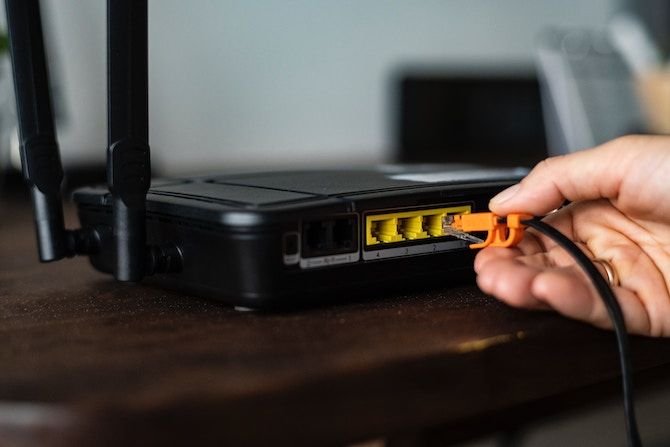
2. Check All Cables and Connections
Loose or damaged cables can disrupt your internet.
- Ensure all cables are securely plugged in
- Check for visible damage
- Replace faulty cables if needed
3. Test Your Internet Speed
Use an online speed test to check if you’re getting the speed you’re paying for.
If speeds are low:
- Disconnect unused devices
- Move closer to the router
- Restart your network
4. Move Closer to the Router
Wi-Fi signals weaken with distance and obstacles like walls.
Tips:
- Place your router in a central location
- Avoid placing it near metal objects or thick walls
5. Reduce Network Congestion
Too many connected devices can slow down your internet.
- Disconnect unused devices
- Limit background downloads
- Schedule heavy usage during off-peak hours
6. Check for Interference
Other electronic devices can interfere with Wi-Fi signals:
- Microwaves
- Cordless phones
- Bluetooth devices
Switch your router to a different channel or frequency band (2.4GHz or 5GHz).
7. Update Router Firmware
Outdated firmware can cause performance issues.
- Log into your router settings
- Check for updates
- Install the latest firmware
8. Reset Network Settings
If problems persist, reset your router to factory settings.
Note: This will erase all custom settings, including Wi-Fi passwords.
Troubleshooting Based on Problem Type
| Problem | Possible Cause | Solution |
|---|---|---|
| Slow speed | Network congestion | Disconnect extra devices |
| No connection | ISP or cable issue | Restart modem/router |
| Weak signal | Distance or obstacles | Move router or use extender |
| Frequent drops | Interference | Change Wi-Fi channel |
| Connected but no internet | DNS or ISP issue | Reset network settings |
When to Contact Your Internet Service Provider (ISP)
If you’ve tried all troubleshooting steps and still face issues, contact your ISP if:
- There’s a service outage in your area
- Your modem shows no signal
- Speeds are consistently below your plan
Advanced Tips for Better Internet Performance
1. Use a Wi-Fi Extender
Extends coverage to areas with weak signals.
2. Upgrade Your Router
Older routers may not support modern speeds or multiple devices.
3. Switch to Wired Connection
Ethernet cables provide faster and more stable connections than Wi-Fi.
4. Secure Your Network
- Use a strong password
- Enable WPA3 or WPA2 encryption
- Prevent unauthorized access
Importance of Reliable Internet
A stable connection is crucial for modern tasks such as remote work, online learning, and digital tools. For example, businesses relying on systems like Robotic Process Automation Tools for Finance need uninterrupted connectivity to maintain efficiency and productivity.
Common Mistakes to Avoid
- Ignoring router placement
- Not updating firmware
- Overloading the network
- Using outdated equipment
- Skipping basic troubleshooting steps
FAQs
1. Why is my internet slow even with a good plan?
It could be due to network congestion, outdated equipment, or interference.
2. How often should I restart my router?
Restarting once a week can help maintain performance.
3. What is the best place to put a router?
A central, elevated location away from obstacles and interference.
4. Can too many devices slow down Wi-Fi?
Yes, multiple devices sharing bandwidth can reduce speed.
5. Is Ethernet better than Wi-Fi?
Yes, Ethernet provides a faster and more stable connection.
Final Thoughts
Troubleshooting internet problems at home doesn’t have to be complicated. By following simple steps like restarting your router, checking connections, and optimizing your setup, you can resolve most issues quickly.
Consistency in maintaining your network and upgrading equipment when needed will ensure a smoother and more reliable internet experience for your home.