

High-resolution displays have become essential for modern content creators. Whether you are editing YouTube videos, short films, commercials, or social media content, choosing affordable 4K monitors for video editing can dramatically improve your workflow and output quality. A 4K monitor delivers sharper visuals, better color accuracy, and enhanced screen space for timelines and tools.
In this comprehensive guide, we will explore what makes a great 4K monitor for editing, key features to consider, budget-friendly options, and a comparison table to help you make the right choice.
Why 4K Resolution Matters for Video Editing
4K resolution (3840 x 2160 pixels) offers four times the pixel count of Full HD (1080p). For video editors, this means:
-
Clearer image detail
-
More accurate color grading
-
More timeline space in editing software
-
Better preview quality for 4K footage
-
Sharper text and UI elements
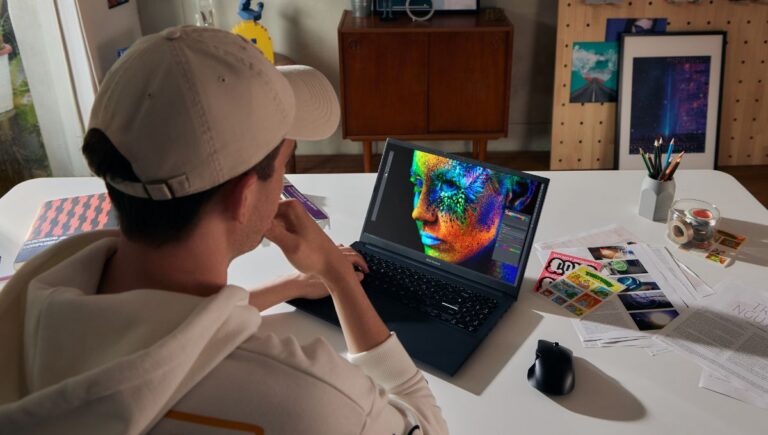
When working in software like Adobe Premiere Pro, DaVinci Resolve, or Final Cut Pro, extra screen space makes multitasking easier. You can view your footage at full resolution while keeping editing panels open.
Key Features to Look for in Affordable 4K Monitors for Video Editing
Not all 4K monitors are ideal for video editing. Here are the most important features to consider:
1. Color Accuracy
Color accuracy is crucial. Look for monitors that offer:
-
At least 99% sRGB coverage
-
High DCI-P3 coverage (if possible)
-
Factory calibration
-
Delta E < 2 rating
IPS panels are generally better for color consistency compared to TN or VA panels.
2. Panel Type
-
IPS Panel – Best for video editing due to wide viewing angles and accurate colors.
-
VA Panel – Good contrast but slightly less color accuracy.
-
TN Panel – Fast response but poor color; not ideal for editing.
3. HDR Support
HDR (High Dynamic Range) enhances brightness and contrast. While budget monitors may not offer true HDR performance, HDR10 support can still improve workflow compatibility.
4. Connectivity Options
Make sure your monitor includes:
-
HDMI 2.0 or higher
-
DisplayPort
-
USB-C (if using a modern laptop)
-
Headphone jack
USB-C is especially helpful because it allows video, data transfer, and charging through a single cable.
5. Screen Size
Common sizes for affordable 4K monitors for video editing include:
-
27-inch (most popular)
-
28-inch
-
32-inch (better for multitasking)
A 27-inch 4K monitor provides sharp pixel density and a comfortable workspace.
Best Affordable 4K Monitor Features Comparison
Below is a comparison table of typical budget-friendly 4K monitors suitable for editing:
| Feature | Budget Option A | Budget Option B | Budget Option C |
|---|---|---|---|
| Screen Size | 27-inch | 28-inch | 32-inch |
| Panel Type | IPS | IPS | VA |
| Resolution | 3840 x 2160 | 3840 x 2160 | 3840 x 2160 |
| sRGB Coverage | 99% | 100% | 95% |
| HDR Support | HDR10 | HDR10 | HDR10 |
| Refresh Rate | 60Hz | 60Hz | 60Hz |
| Connectivity | HDMI, DP | HDMI, DP, USB-C | HDMI, DP |
| Best For | Color grading | Laptop users | Large workspace |
This comparison helps you quickly identify which monitor suits your editing style and setup.
Budget Range for 4K Editing Monitors
Affordable 4K monitors for video editing typically fall within:
-
Entry-level: Budget-friendly models with basic color accuracy
-
Mid-range budget: Better calibration and wider color gamut
-
Upper budget tier: USB-C, factory calibration, better HDR performance
Spending slightly more on color accuracy often pays off in the long term, especially if you work with professional clients.
Calibration: A Must for Video Editors
Even affordable monitors can perform like premium models with proper calibration. You can:
-
Use built-in monitor settings
-
Purchase a color calibration device
-
Adjust white balance and brightness manually
Proper calibration ensures your exported videos look consistent across different screens.
Ergonomics and Build Quality
Editing sessions can last hours. Choose a monitor that offers:
-
Height adjustment
-
Tilt and swivel support
-
VESA mounting compatibility
-
Thin bezels for dual monitor setups
A comfortable setup reduces eye strain and improves productivity.
Single vs Dual Monitor Setup
Many editors prefer dual monitors. One monitor displays the timeline, and the other shows full-resolution playback. If budget allows, two affordable 4K monitors for video editing can create a powerful workstation without overspending.
Who Should Buy an Affordable 4K Monitor?
These monitors are ideal for:
-
YouTube creators
-
Freelance video editors
-
Film students
-
Social media content creators
-
Marketing professionals
If you also manage online campaigns or Select AI-Powered Tools for Digital Marketing Automation, a 4K monitor provides sharper visuals for analytics dashboards, ad creatives, and design work.
Tips to Maximize Performance
-
Use DisplayPort instead of HDMI when possible.
-
Adjust brightness to around 120–140 nits for editing.
-
Enable color profiles in your operating system.
-
Keep monitor firmware updated.
-
Pair with a capable GPU to handle 4K playback smoothly.
Common Mistakes to Avoid
-
Choosing a monitor based only on resolution
-
Ignoring color gamut specifications
-
Buying a TN panel for editing
-
Overlooking ergonomic adjustments
-
Not checking compatibility with your laptop or PC
FAQs About Affordable 4K Monitors for Video Editing
1. Are affordable 4K monitors good enough for professional video editing?
Yes, many affordable 4K monitors offer excellent color accuracy and sRGB coverage. While they may lack high-end HDR performance, they are more than sufficient for YouTube, social media, and freelance projects.
2. Is 27-inch or 32-inch better for 4K editing?
A 27-inch monitor offers sharper pixel density, while 32-inch provides more screen space. The choice depends on your workspace and personal preference.
3. Do I need HDR for video editing?
HDR is helpful but not mandatory. Most budget HDR monitors support HDR10 but may not deliver true high brightness levels required for advanced HDR grading.
4. Can I edit 4K videos on a 60Hz monitor?
Yes. Video editing does not require high refresh rates. A 60Hz monitor is perfectly fine for editing workflows.
5. Should I choose IPS over VA for editing?
Yes. IPS panels provide better color consistency and wider viewing angles, making them ideal for editing.
6. Is USB-C necessary?
USB-C is convenient but not essential. It is useful for laptop users who want a single-cable solution for power and display.
Final Thoughts
Investing in affordable 4K monitors for video editing is one of the smartest upgrades you can make as a content creator. High resolution improves detail visibility, enhances color grading precision, and provides a more efficient editing environment.